So you've created your account your account on the GenR3d platform - welcome! Now, you want to add more of your team to be able to add, monitor, and scan your chatbots for threats. Let's walk through the process for adding new users together.
Getting to your company page #
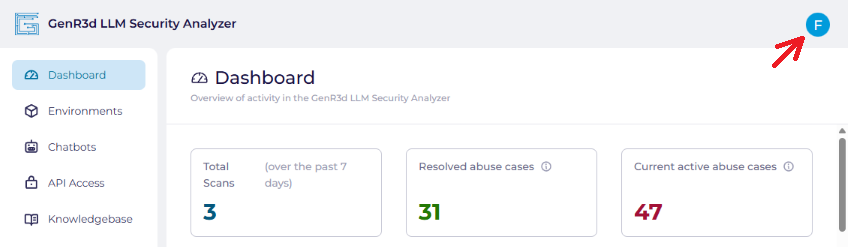
The first step to adding new users is to go to your company's management page. Your company's management page can be found with your user information by using the logo on the top right.
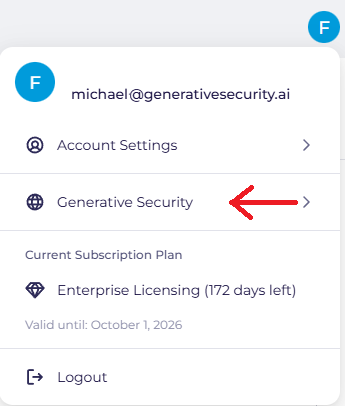
After clicking on the logo, your user account settings, company account settings, and current subscription information will all be visible. You can add users from your company's setting page. So click on your company name.
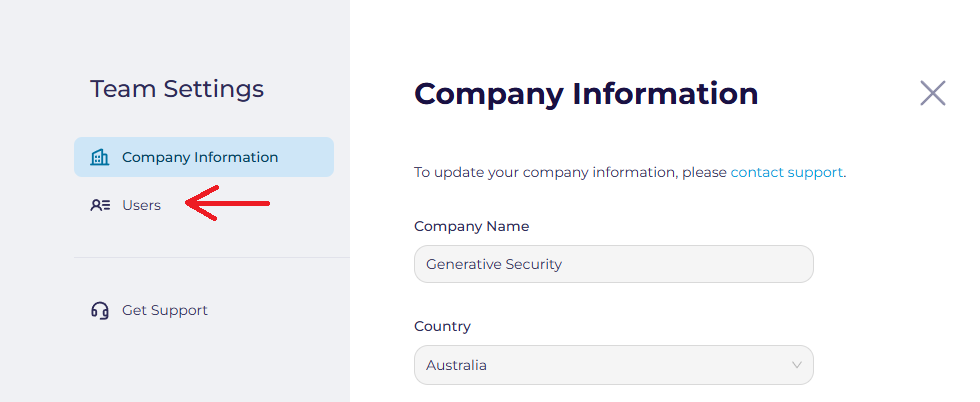
After clicking on your company, you'll have the ability to review the information provided when the tenant was created. Click on the "Users" navigation on the left hand side to manage users.
(NOTE: if you need to change your company's information, at this time the only way to do this is by contacting support).
Sending the invite #
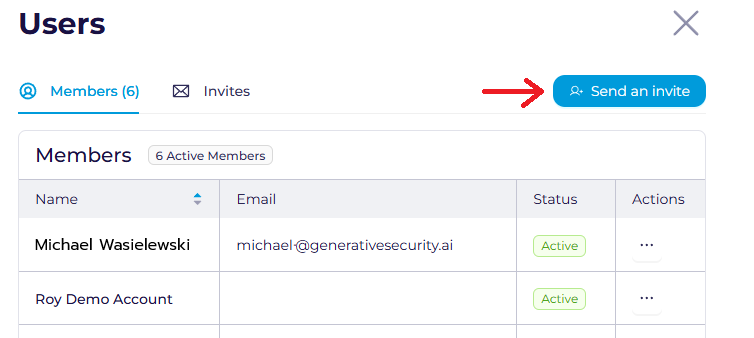
Here you will see all of the users you currently have in your tenant. To add a new user, you want to click on the "Send an Invite" button on the right of the screen.
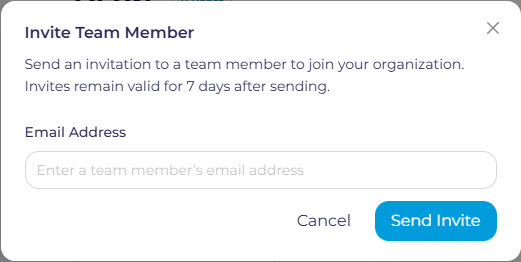
Enter the email address of the team member you want to add. Once you send the invite, they can fill out their name and any other additional information necessary to create the account.
Monitoring the status of user invites #
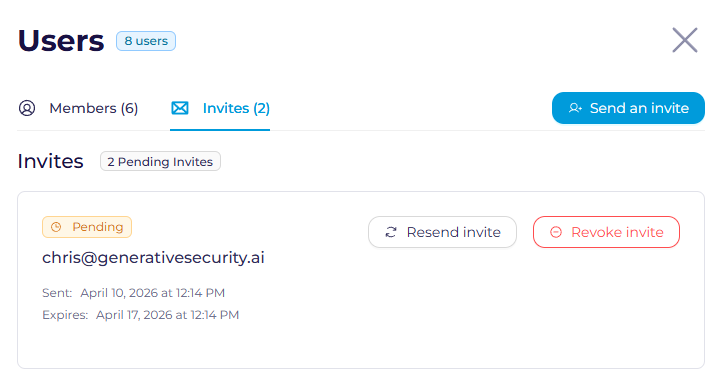
After sending the invite, you can track whether or not the users have completed the sign up process. Using the same screen, click on "Invites" and you will see who has been invited, whether or not they have accepted, rejected, or if the invite is pending, and you can revoke or resend the invite as necessary
When you have finished your tasks, use the "X" on the top right to go back to your Dashboard.